Paythen
  • Features
  • Examples
  • FAQ
  • Integrations
    • Get started in under 2 minutes with our fully featured plugin
    • Offer payment plans on Shopify with our email based workflow
    • Sell more tickets for your next event with payment plans
    • Send customized payment plan links based on data from 7,000+ apps
    • Offer easy digital gift cards
  • Pricing
  • What’s new
  • Log in
  • πŸ‘‰ Try it free
πŸ‘‰ Try it free
Select Page

Paythen + Capsule

Paythen works with Capsule to supercharge your workflow. You can send customer data from Paythen to Capsule using Zapier. Below is some more info regarding this integration.


All integrations

When this happens in Paythen

Zapier trigger step

Customer created

When a customer is created in your Paythen account, send customer data including standard fields like the name, email, plan data like the plan name, expected vs. collected amounts, the customer summary link, and even custom field data. If the same customer signs up to multiple plans, each sign up is treated like a new customer.

Successful payment

Triggers each time there is a new payment in your Paythen account.

Plan completed

Triggers when a customer completes their Paythen payment plan.

Plan cancelled

Triggers if a Paythen payment plan or subscription is cancelled.

Failed payment attempt

Triggers each time a scheduled payment fails. Applicable to payment plans and subscriptions.
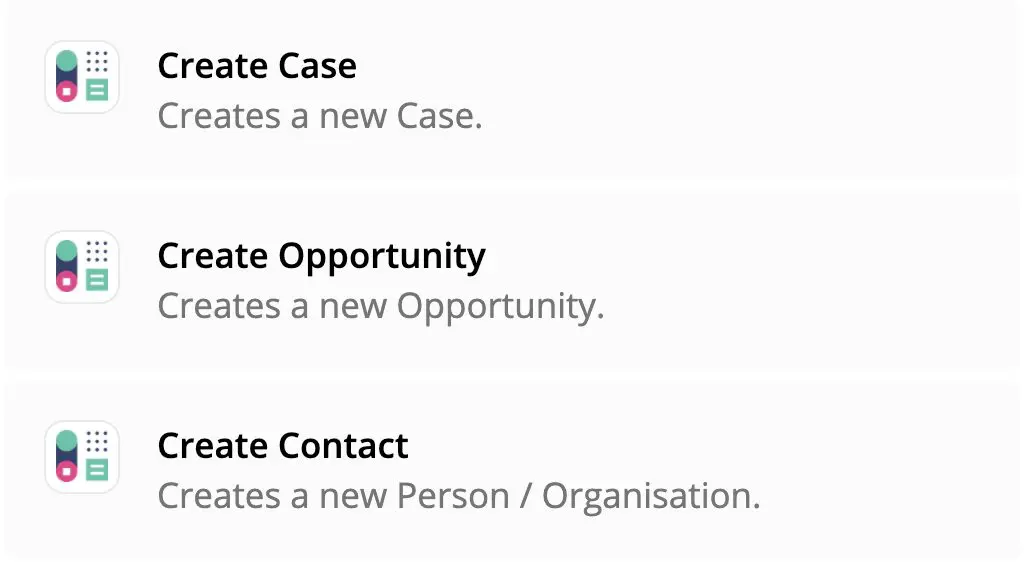
Do this in Capsule

Zapier action step

Read more about using Capsule with Zapier here.

What is Zapier?

Zapier lets anyone send data from one app into over 7,000+ other apps, automatically and with no code. It lets you automate repetive tasks in seconds. We’ve been using Zapier for many years. It lets us spend our time on more important things – like improving Paythen for you πŸ™‚

If you haven’t tried Zapier yet, create a free account and give it a shot. Or read more about how Zapier works here.
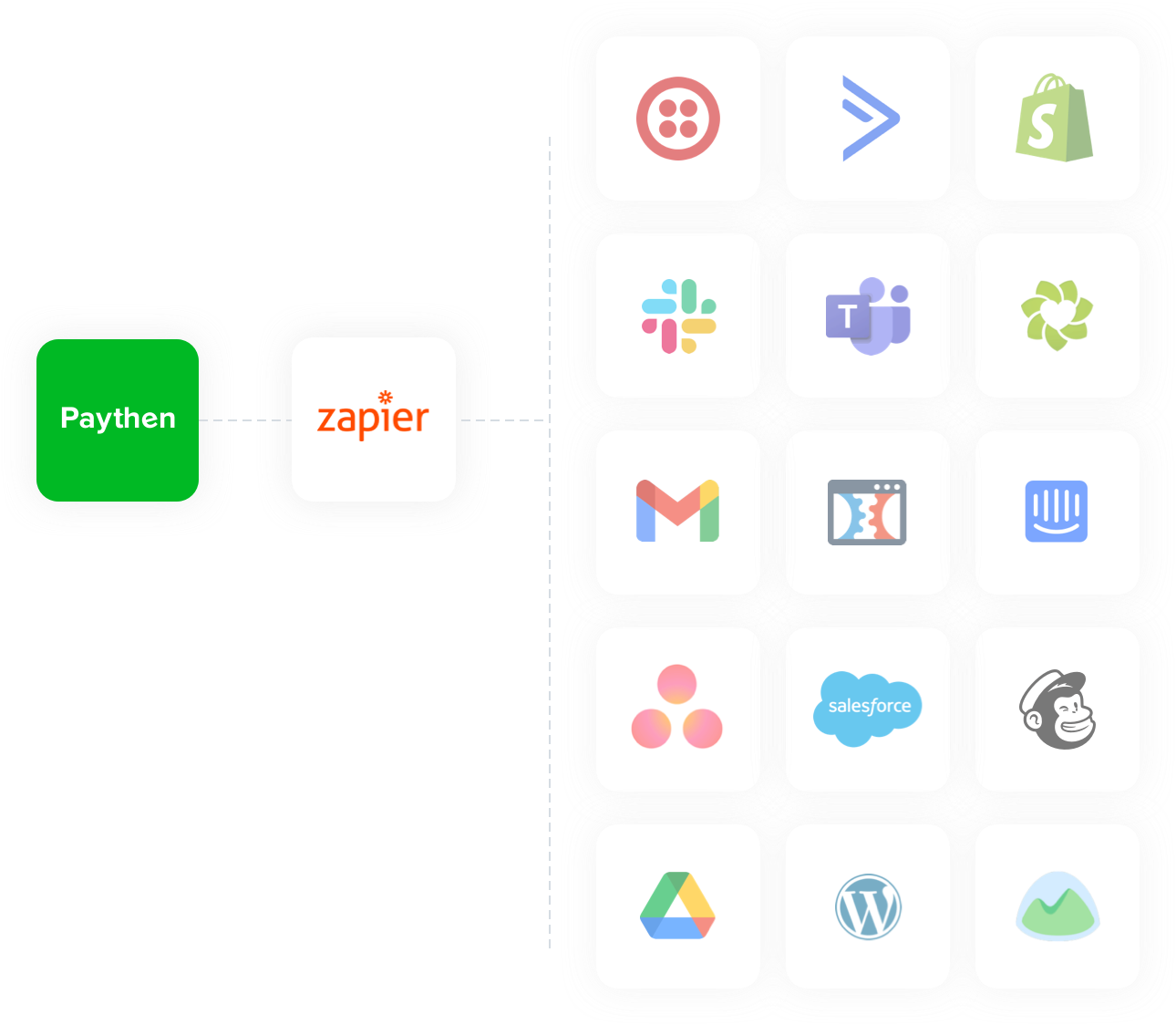
Paythen integrates with Capsule

  • This field is for validation purposes and should be left unchanged.

We’ll ask you to connect your Stripe account or create a new one once you sign up. Paythen works with Stripe.

stripe
  • Experiment with new plans, discounts and more in test mode
  • Flexipay – sell more by giving customers choice
  • Customer data exports now include discount information
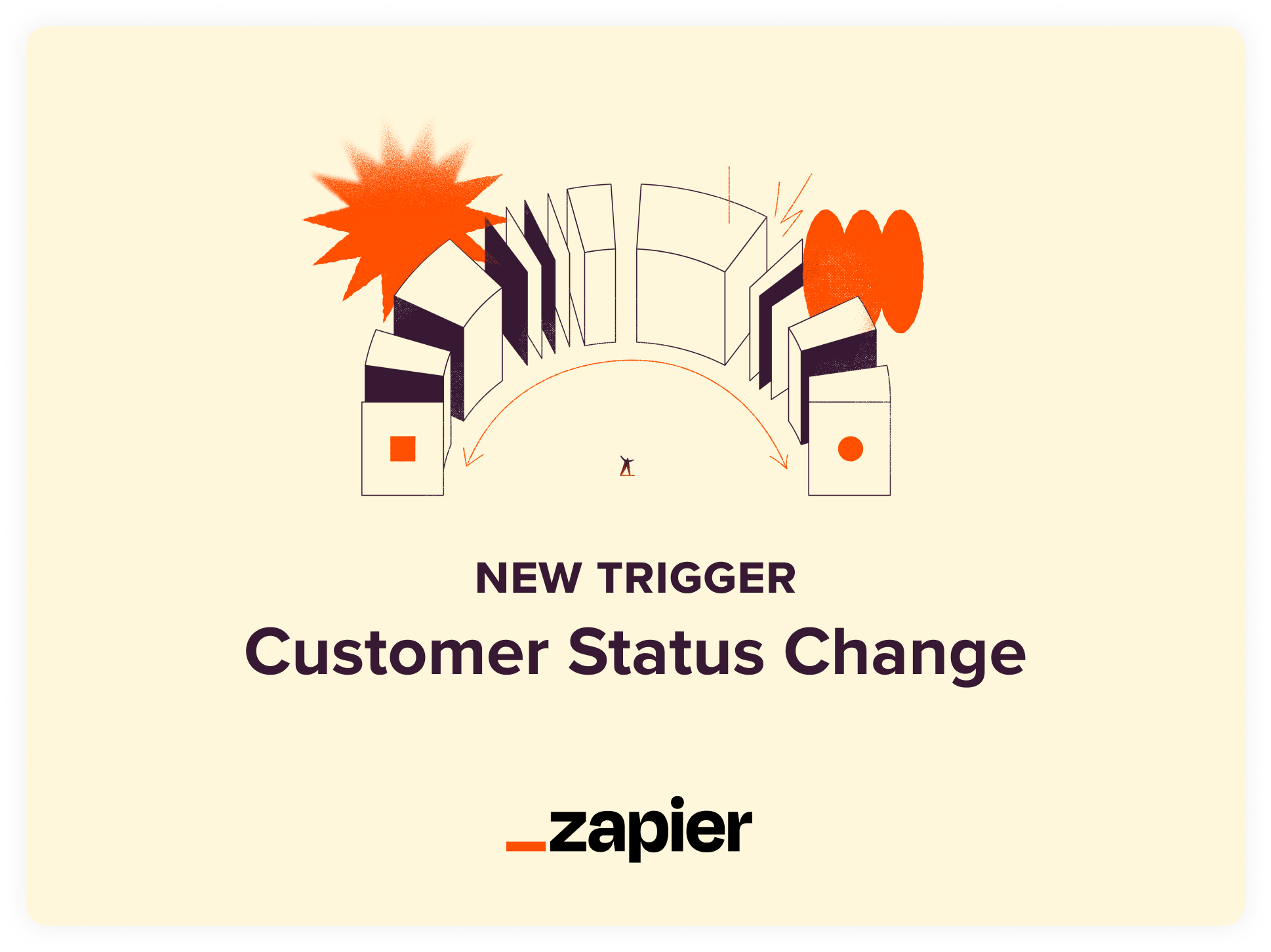
  • Zapier trigger: When a customer’s status changes
  • Internal notes keep everyone on the same page
  • New Find Customer Zapier action allows for more automated workflows
  • Find Plan Zapier action lets you find and send plan links automatically
  • Customer emails are now validated automatically
  • Let customers choose their deposit amount at checkout
  • Freeze pre-filled fields to make them read-only πŸ₯Ά
Close

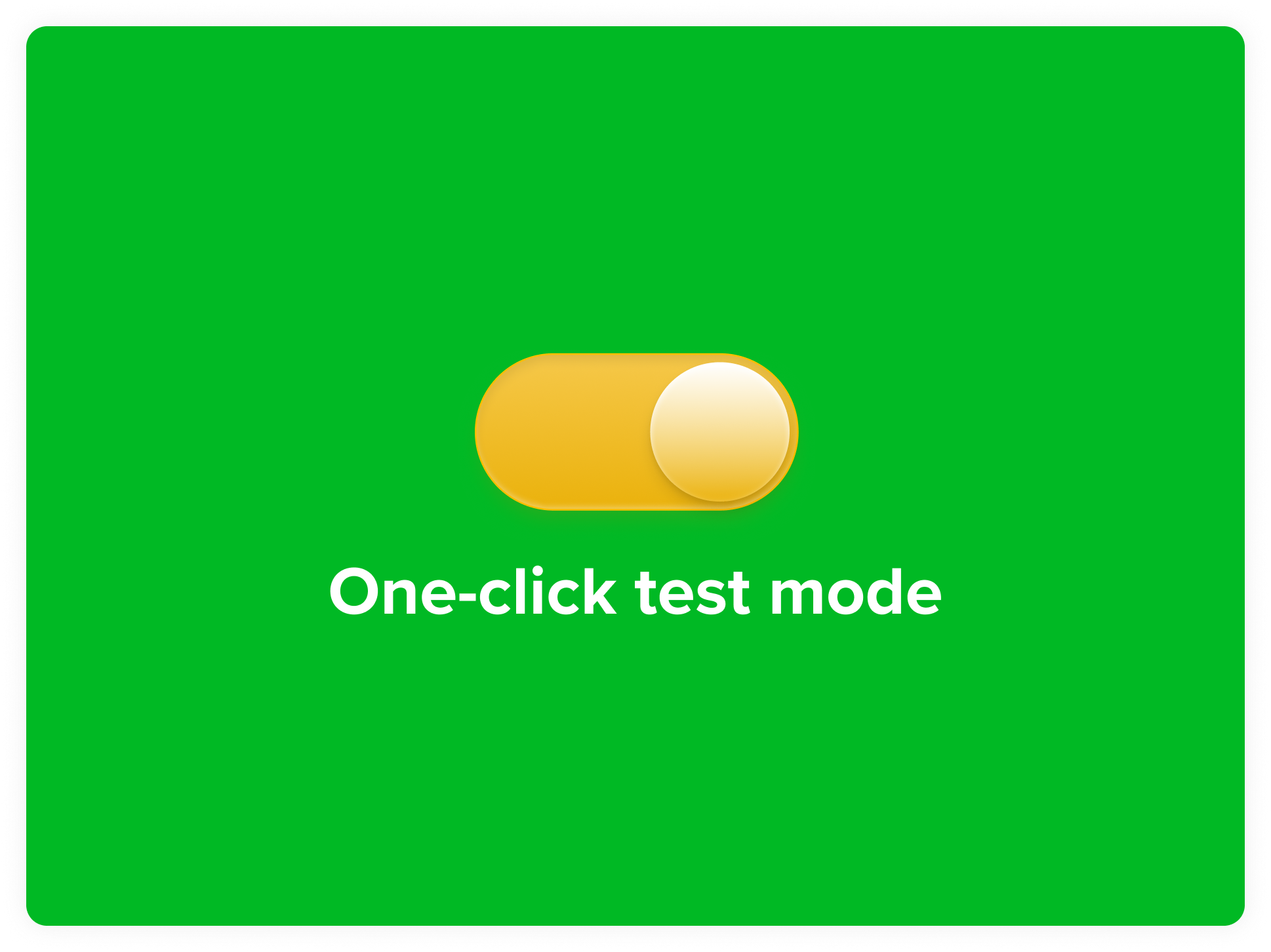
Experiment with new plans, discounts and more in test mode

Admin
paythen-test-mode-toggle

Paythen now has a one-click test mode toggle – you can switch to this anytime to try out new plan types, understand how a new discount would work, test new templates and understand customer progression first-hand. You get real emails in test mode from simulated events – just like your customers would. Use test mode to fast-forward payment plans, get customer-facing emails, simulate what happens when a payment fails, and test new things without any live payments.

To try test mode, just flip the switch next to the Paythen logo. A yellow “You’re in test mode” label stays on while you’re in it so there’s never any doubt about which data you’re looking at. Flip it back and you’re in live mode exactly where you left off. The first time you or someone on your team toggles on test mode, we’ll add some sample test mode data you can check out. Create more by signing up to a test plan yourself. Wipe it with one-click whenever you want.

What you can do in test mode

Build and refine new plans β€” payment plans, Pay your way, date-based, Wait for it, Flexipay, subscriptions and one-off payments, plus templates and discount codes.

See exactly what customers see β€” open any test plan link and go through the full checkout with simulated card fields. No real card is saved or charged. Use a real working email to ensure you get the same emails customers would. You can toggle your admin email settings for test mode separate to your live mode settings too.

Simulate what happens next β€” test plans don’t advance on their own, so each test customer’s page has controls to simulate the next payment, a failed payment, or send the upcoming payment reminder.

Get the real emails β€” sign up with a working email and the customer and admin emails land in your inbox, clearly marked as test-mode emails. Email settings in test mode are separate, so you can switch them on or off without affecting live.

Copy between modes β€” move plans, templates and discounts from test to live once you’re happy, or bring a live plan into test to try a change. Each copy is a new, isolated object and not synced between modes in real time to avoid accidental changes. Copy back and forth as often as needed.

Start fresh any time β€” add a set of sample customers, plans, templates and discounts in various statuses, or wipe all test data with one click via Settings β€Ί Account info. Live data is never touched when you do this.

Test test mode templates with WooCommerce β€” If you’re using our WooCommerce plugin, you can use a test-mode template link to check the full store-to-payment-plan flow before going live – this gives you a full picture of what your customers will see using your exact plan setup and configuration. Don’t forget to change this to a live template link once you’re done testing!

A few things to know

Test mode doesn’t currently work with Zapier and creates no data in your Stripe account. Early access features like Offers and our Rewardful integration aren’t available in test mode yet. If you need to test a full workflow involving Zapier or Stripe data, use a separate Paythen demo account connected to a Stripe sandbox.

As always, we’d love to hear what you think. If you have questions or feedback, reach out via the chat icon πŸ’¬

πŸ‘‰ Try test mode in your dashboard now
πŸ‘‰ Testing in Paythen guide
πŸ‘‰ Understand demo accounts (vs. test mode)

Close

Flexipay – sell more by giving customers choice

Payment Pages

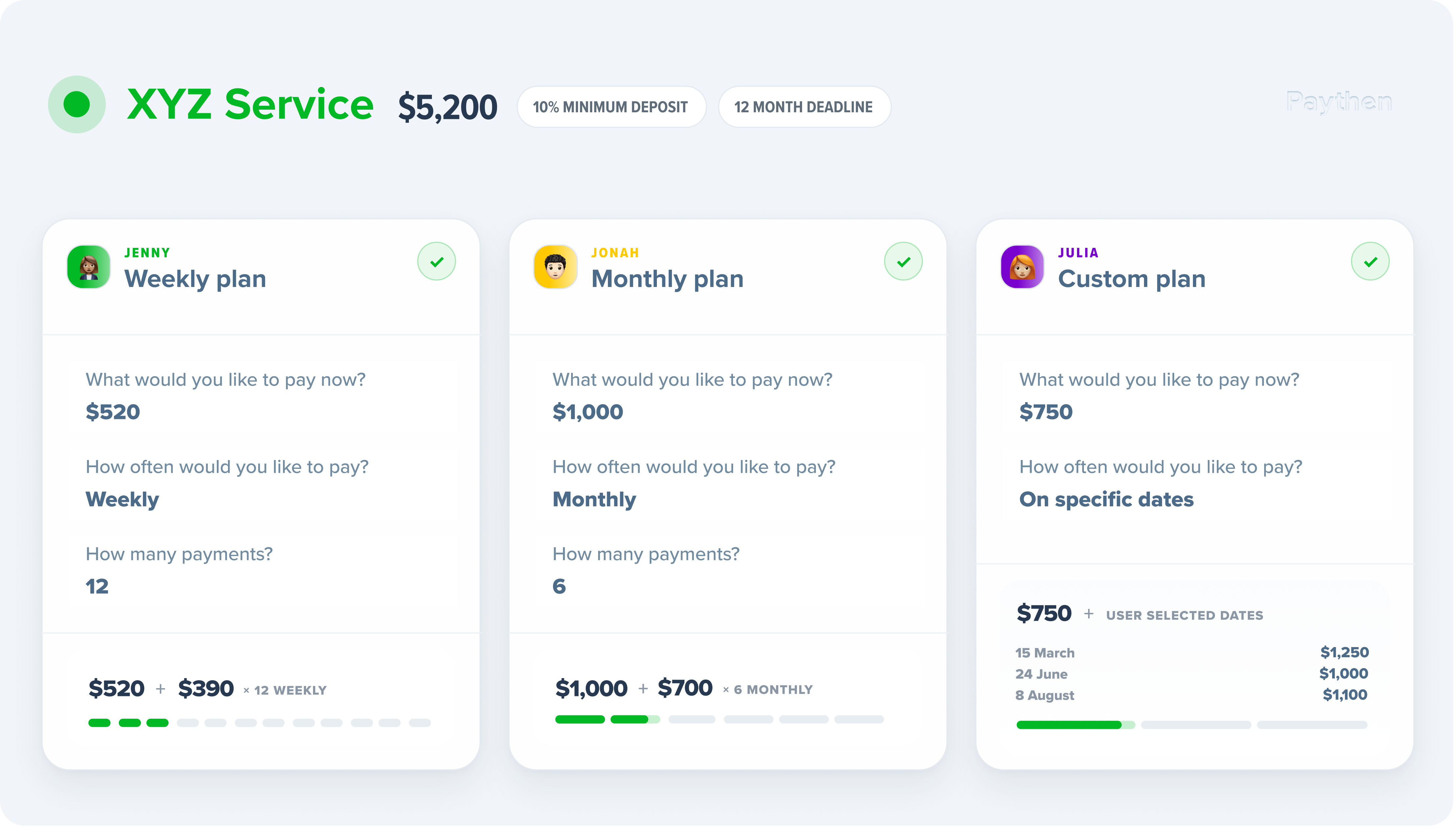
If you’ve ever wanted to give your customers more say in how they pay β€” without losing control over key aspects, Flexipay offers exactly that. It’s our most flexible plan type, and it puts the power of choice in your customers’ hands, within the rules you set. This helps you attract and sell to more customers.

Flexipay plans let each of your customers design their own payment schedule when they check out. You define the rules β€” the minimum deposit, the completion timeframe or date, and whether to allow customers to pay in full β€” and each customer picks what suits them. No two customers need to be on the same schedule. One might pay weekly over 3 months, another monthly over 6 β€” all from the single plan link you create. πŸ™Œ

Try a live Flexipay demo here to see exactly what your customers experience.

You’re in control

Flexibility for your customers doesn’t mean ambiguity for you. As the business owner, you set the key parameters like:

  • Minimum payment β€” what customers need to pay upfront – $100, 10%, etc.
  • Completion timeframe or date β€” all payments must be completed within a specific timeframe from sign up (eg: 12 months) or a specified date (eg: 28 January 2027)
  • Allow pay-in-full β€” decide whether you want to offer the option to pay in full
  • Pay-in-full discount β€” optionally reward customers who pay the full amount upfront

Flexipay also supports ecommerce and other scenarios where each customer has a varying total via templates. This lets you bring the power of Flexipay plans to any workflow you have including WooCommerce, Shopify and almost anything else via Zapier.

Flexipay-plan-visual-paythen

Who is it for?

Flexipay is a great fit for businesses where customers have varying budgets or cash flow preferences β€” and where a one-size-fits-all plan isn’t ideal. Some examples include:

πŸŽ“Β Coaches & course creators β€” let students choose a deposit and pace that suits their cashflow

πŸ“ΈΒ Photographers & creativesΒ β€” offer payment flexibility without lengthy back-and-forth on custom plans

πŸ‹οΈΒ Fitness & wellness β€” training packages and retreats where clients have different financial rhythms

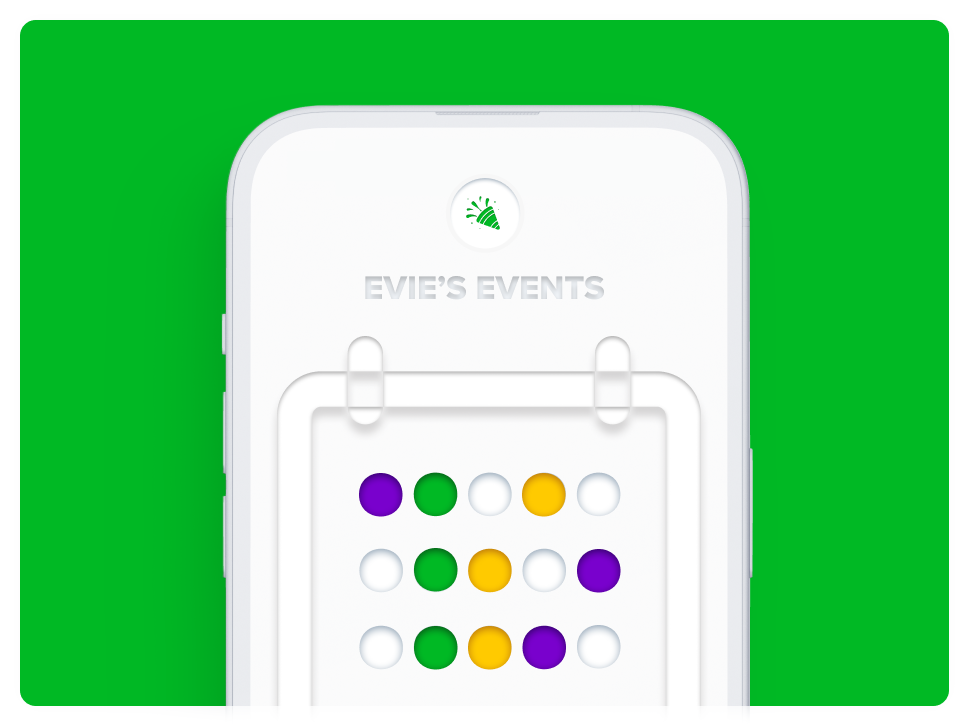
πŸŽͺΒ Events & experiences β€” sell tickets or packages months in advance and let customers spread the cost their way, while having a hard completion date for everyone x days before the event

πŸ› οΈΒ Service businessesΒ β€” take on clients who need flexibility without abandoning your payment terms

If you currently use our Pay Your Way plans for flexibility, Flexipay takes that further β€” giving customers true control over their own schedule, not just a choice between two fixed options. Talk to us about migrating your existing Pay your way plans to Flexipay if this suits your needs better.

As always, we’d love to hear what you think. If you have questions or feedback, reach out via the chat icon πŸ’¬

πŸ‘‰ Try the Flexipay demo
πŸ‘‰Β  Flexipay setup instructions

Close

Customer data exports now include discount information

Admin

Exporting customer data via your Paythen dashboard now includes more granular data regarding discount codes – the type of discount, frequency, the total discount amount and more. Head to the customers tab in your Paythen dashboard and click on the export data button to see the details.

We’ve also add a next payment amount field in addition to the existing next payment date field which gives you better visibility into any upcoming payment amounts when looking at the data in the export.

Close

Zapier trigger: When a customer’s status changes

Zapier
customer-status-change-zapier-trigger@2x

With our new “Customer Status Change” Zapier trigger, you can now set up precise workflows to suit your business process.

This trigger lets you send custom text messages, emails or update access in your other systems based on customer’s status change in Paythen. Eg: if you have a customer on a payment plan and if their status changes to Overdue – Retrying, you might want to trigger a custom text notification, or if a customer’s status changes to “Overdue – At risk” which means multiple retries have failed, you can remove their access to any systems. When a customer completes their payment plan, you can trigger an email asking for a review or feedback, and much more.

These are just some examples – this trigger works with any Paythen customer status, giving you a lot of potential workflows with sending data to other systems, sending customers additional emails and texts, or performing actions in your other systems.

Go to Zapier now to get started.

Close

Internal notes keep everyone on the same page

Admin

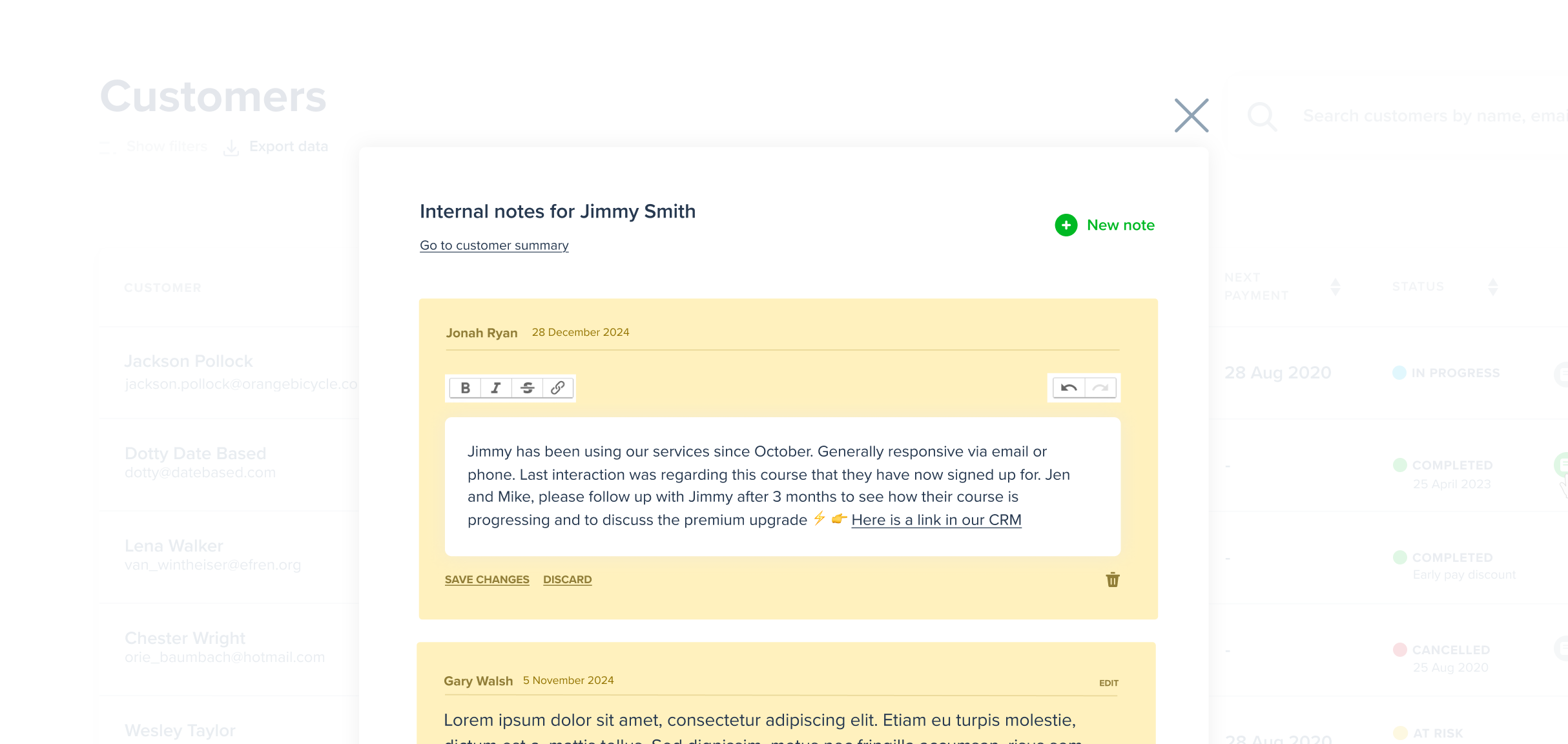
Add additional context about customers directly in Paythen to keep everyone on the same page or for your own reference with internal notes. Did a customer request a temporary pause? Some other special request? Cancelled and moved a customer to a new plan? Now you can add relevant information and context about any customer in Paythen with internal notes – just like a sticky note (but way more reliable).

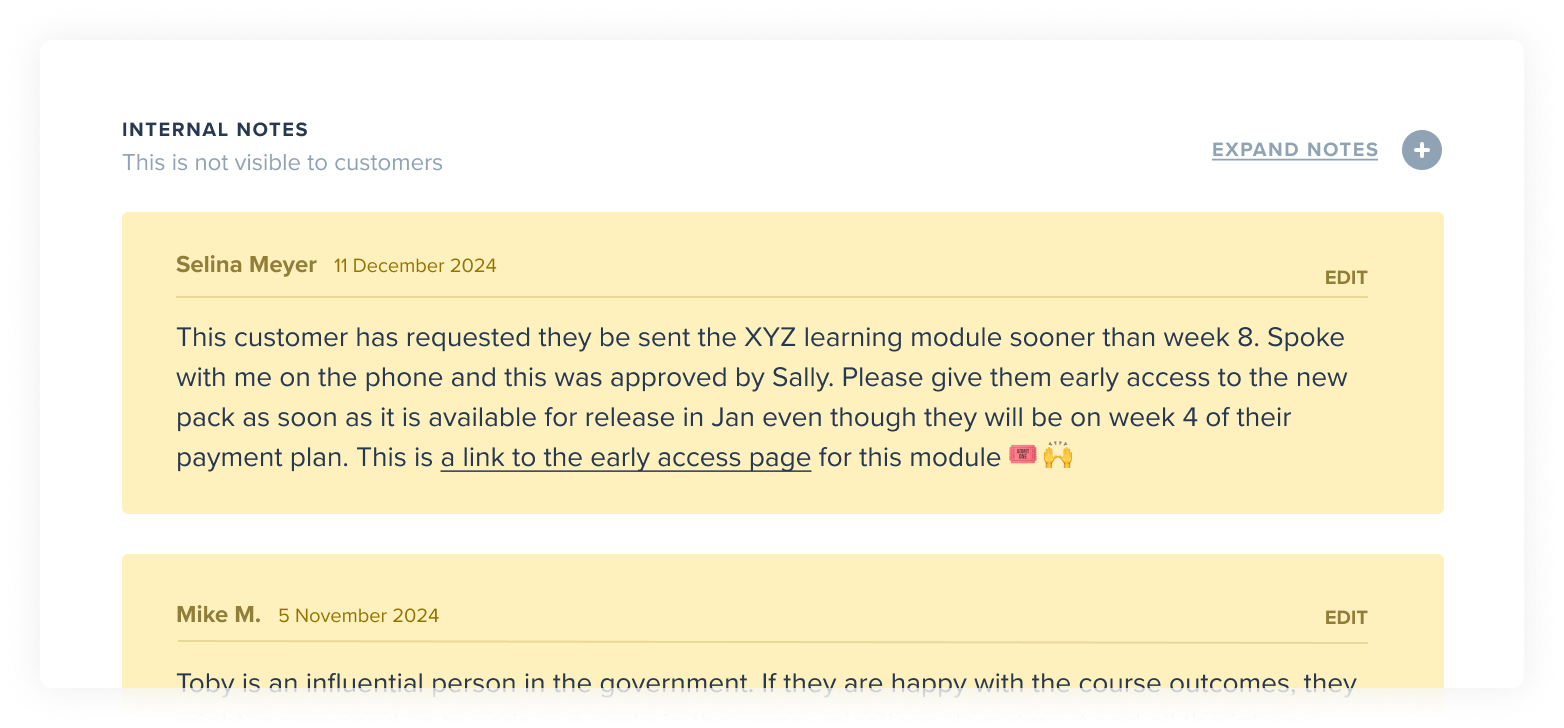
Anyone on your Paythen team can see, add and edit internal notes but they are never visible to customers. You can add an internal note from the customers table, or via a customer’s detail page via the new notes icon. A handy indicator icon appears in the table view for customers that have one or more notes added to them to let you easily view and add more.

internal-notes-indicator-icon

You can add multiple notes per customer and easily see which team member added or last edited a note. Notes can have formatting, links and of course, emoji πŸŽ‰ 🀩 ⚑ πŸ™Œ

To add your first note, go to the customers page in your Paythen dashboard, click on the more menu next to any customer and choose the “Add an internal note”option.

Once you’ve added a note, it will be accessible via the customers table via the new notes icon that shows only for customers that have a note. Notes will also be visible when you view the customer’s detail page (only to you and your team). It’ll work the same way for everyone on your Paythen team.

internal-notes-preview-paythen

Customers never see internal notes. They are useful for context about specific customers, their plans and even to add links to other systems for reference.

Close

New Find Customer Zapier action allows for more automated workflows

Zapier

If you use Paythen with your ecommerce store either via the email based flow (eg: for Shopify) or our plugin (like WooCommerce), the flow typically involves customers completing the checkout with the payment plan option chosen, and then either being shown or emailed their payment plan link.

For WooCommerce, the order status automatically changes if they complete their payment plan payment, but for email based workflows like Shopify, Webflow, Eventbrite and any others, once a customer is emailed their payment plan link, you had to manually check if they had paid by logging into the Paythen dashboard, and then manually following up.

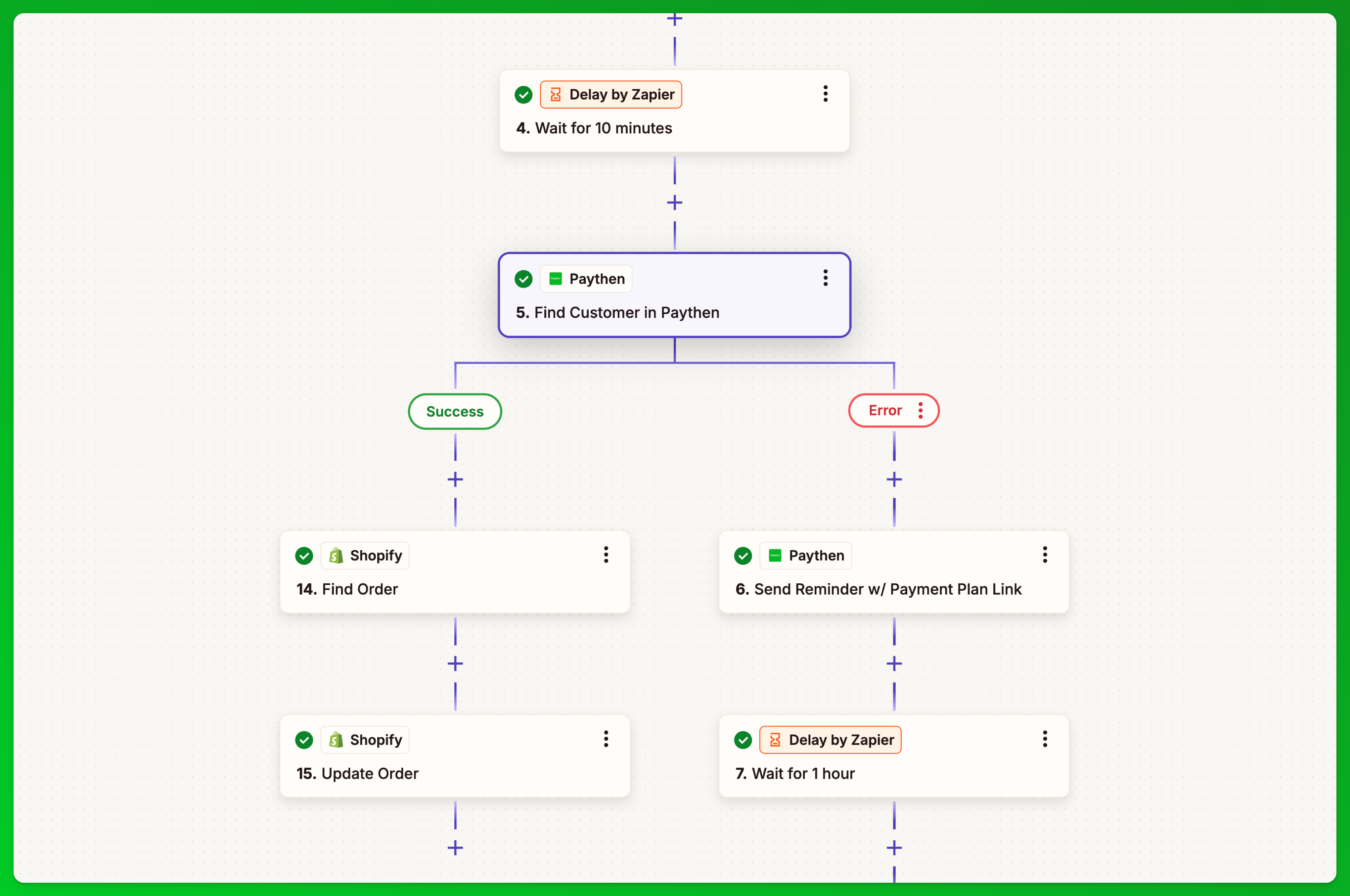
You can now fully automate this process with our new Find Customer action available in Zapier. In your zap where you send customers the Paythen payment plan link, just add a short delay after the current flow (eg: wait for 10 minutes) and then use the Find Customer action to check if the customer exists in Paythen. If they do, you can update your eCommerce store order – eg: adding a note and/or tag in Shopify and passing the customer’s Paythen link for reference or in other platforms, you can update the status of the order directly too.

If the customer doesn’t exist, this means they haven’t signed up to their payment plan yet – you can set it up in Zapier to send them a reminder with custom text in it and include the payment plan link again. You can then continue to do this multiple times for a few hours or even a few days after the order was placed, and cancel the order and more as needed if the customer doesn’t pay eventually.

The same setup works when you’re using Paythen with any third party form tool, or any other custom workflows where you show / email them the payment plan link. You can now just add a short delay, then check if they have paid and exist as a customer in Paythen, and if not, trigger one or more reminders and take further steps as needed.

This process required manual admin till now – but can now be fully automated, saving you time. To get started, open your Zapier account and in the action step, choose “Find Customer”. You can modify your existing zap by adding a delay after you send the payment plan link, then checking if the customer exists in Paythen, and then either updating the order in your eCommerce platform or other system (find order and add a note in Shopify for example), or if not found, you can then trigger another reminder email with custom text. You can then set up further steps to check again, say in 1 hour, 4 hours, 2 days, etc to continue automated follow-ups as needed.

If you’re not sure how to do this with your workflow, just reach out to us via the chat icon and we’ll help you get set up.

Close

Find Plan Zapier action lets you find and send plan links automatically

Zapier

If you use direct plan links in Paythen, our new “Find Plan” action gives you a way to automatically send your customers a link to an existing plan in your account based on changes and fields in your other systems. Eg: If a customer’s status in your CRM changes, or if they fill out a form on your website, you can find and send them the relevant plan link automatically.

Eg: You’re on the phone with a potential customer who says they want to move ahead with your Product Management Advanced Course. In your CRM or support system, you just add a tag or update a field and a zap you have set up will find the relevant plan in your Paythen account and send the customer an email, with no manual email composing, formatting, copying and pasting the link, etc. Or you just want a fast workflow to send customers different plan links, you can connect Slack or Teams to the Find plan action to send customers the relevant plan link based on a message in Slack – eg: When I post a message which contains the keyword “Plan ABC” and a customer’s email, then find the relevant plan and send an email to the customer via that email, and add a note in my CRM “Plan link sent on xx date” etc.

These are just a few examples but there are many advanced workflows you can now set up based on this Find Plan action and even more when combined with the Find Customer action – like you could send customers a plan link, then wait 1 hour, check if the customer exists in Paythen, and if not, trigger an automated follow up, and repeat this process for a few days or weeks as relevant.

To get started, log into your Zapier account and in your zap’s action step, choose the “Find customer” action.

Close

Customer emails are now validated automatically

Admin

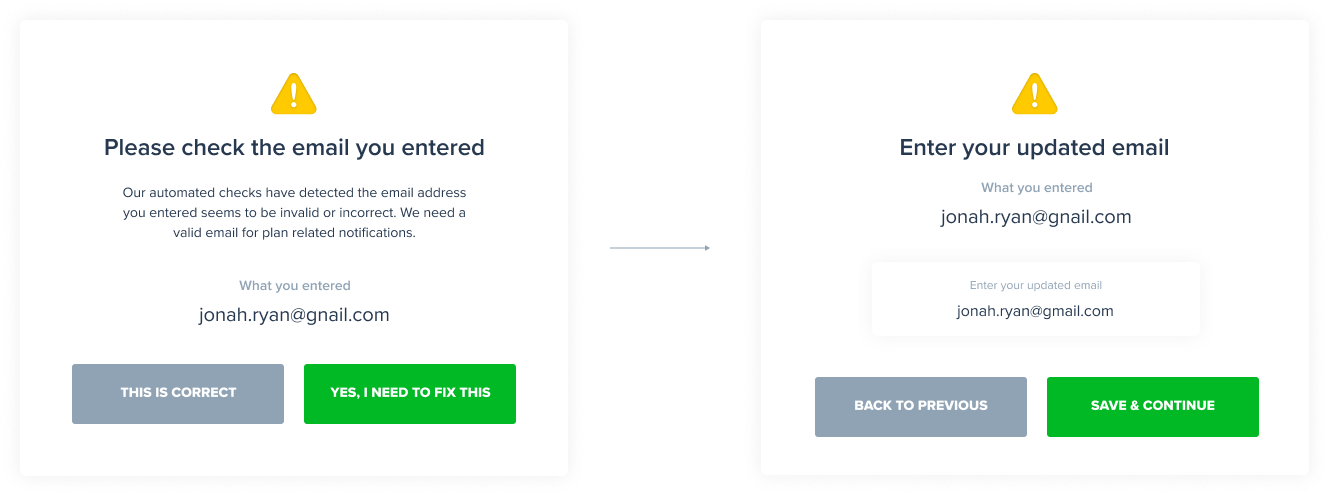
When a customer signs up to any plan, we now automatically and invisibly check their entered email address for typos, delivery issues and a range of other checks. For customers where the email is flagged as potentially incorrect or invalid, we ask customers to re-check it and if needed, fix it. This is what a customer with an incorrect or invalid email will see after they submit their details on the payment page. If they indicate “Yes, I need to fix this” they will be shown a second screen to enter their updated email:

Because these are automated checks, they can very occasionally result in valid emails sometimes being flagged incorrectly so customers are given the option to say “This is correct” which overrides the automated check and marks the email as valid.

This flow doesn’t affect payment collection, nor does it prevent customers from signing up to a plan. There is no change or impact to the payment or sign up flow. For all customers, once they submit their payment information, the payment is immediately processed with no delays, even if the email is invalid. This validation flow triggers after they have paid and signed up.

In instances where a customer’s email is flagged as invalid but they abandon this flow without updating their email, the plan will continue without issues but the “invalid email” status will be clearly indicated in your admin dashboard and on the customer page. From there, either the customer or you as an admin can click on the “Fix it” link and trigger this flow any time to enter the correct email.

This helps prevent invalid or incorrectly typed emails from ending up in your Paythen account which not only reduces failed payments because customers receive upcoming payment reminders but also cuts down on manual admin for you and your team.

Close

Let customers choose their deposit amount at checkout

Woocommerce

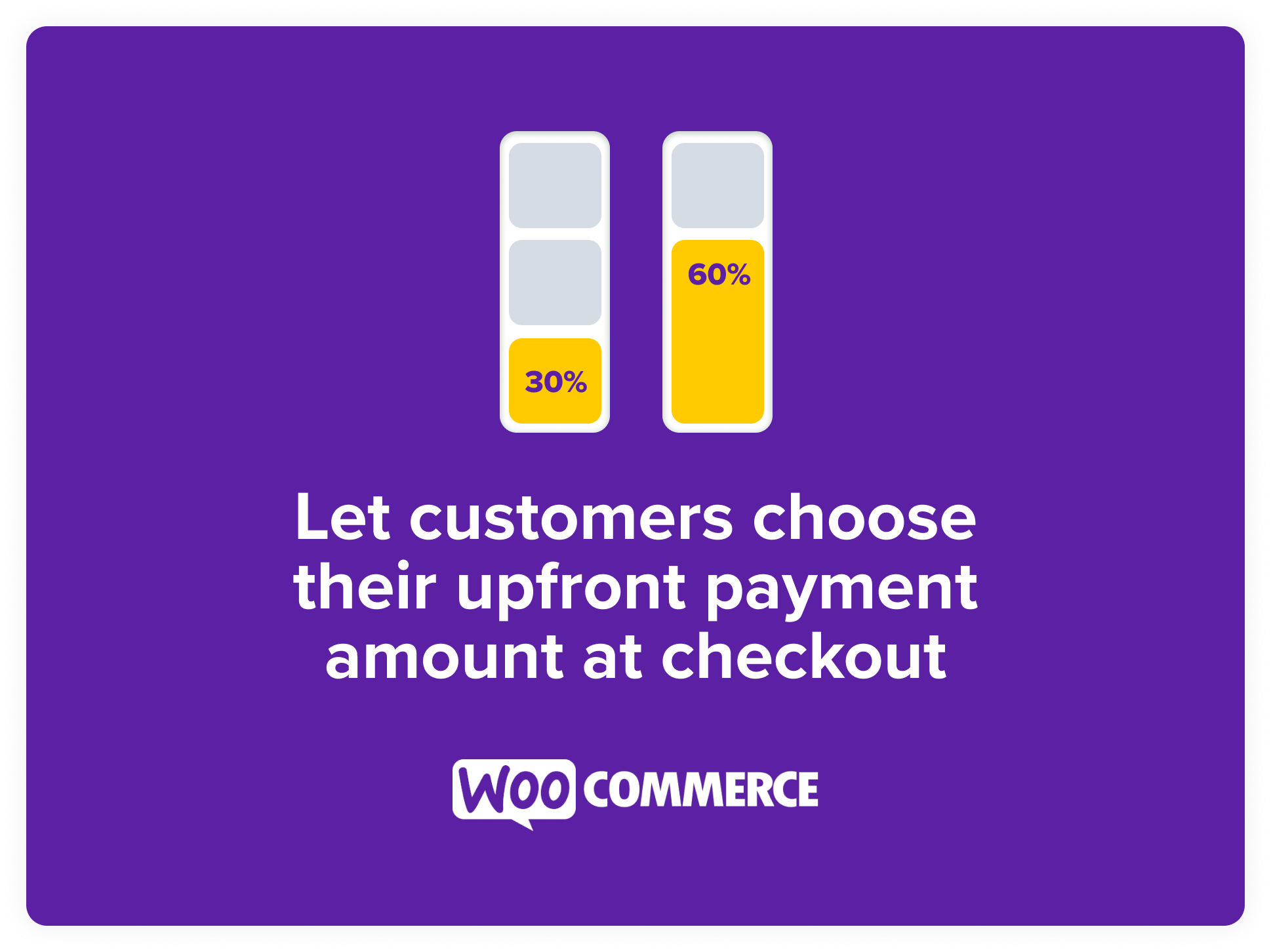
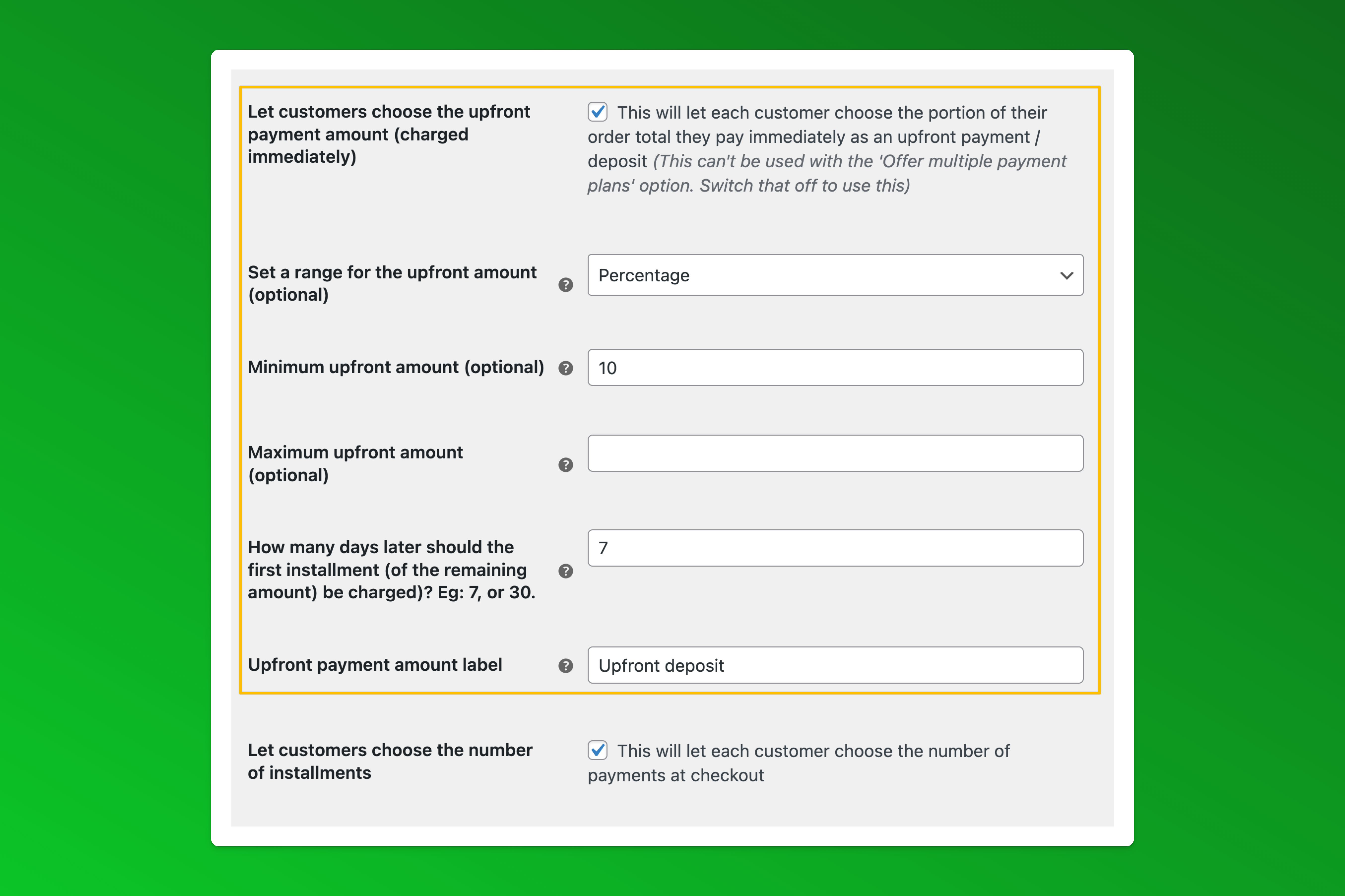
You can now let customers choose their upfront payment amount at checkout. They can pay 20%, 50%, or any other amount immediately and the rest over easy installments. You can set a minimum and maximum payment amount, either as a fixed amount or a percentage of the cart total. This, combined with the existing option to let customers choose the number of installments, gives your customers maximum flexibility while ensuring they follow your pre-set rules.

Flexible payment plans help you sell more since customers can now tailor their payment plans for their cashflow and budget. This functionality is available in our WooCommerce plugin v0.9.1 and higher (download the latest version here) and works with both standard and blocks-based checkouts.

In your Paythen plugin settings, you will see the new options you can enable to switch this on and customize it to suit your business:

This further enhances flexibility and effectiveness for you and your customers, adding to the granular customizations you can already make to offer payment plans just how you need.

Close

Freeze pre-filled fields to make them read-only πŸ₯Ά

Payment Pages

If you’ve already collected some key info in a previous step like a form, and are then sending customers to a Paythen plan payment page, to ensure key data like the name, email and any custom fields remain consistent, you can now freeze them so customers can see them on the payment page but can’t change them. This only works with fields you are pre-filling. This helps ensure your data remains consistent between different systems and avoids accidental changes.

To freeze pre-filled fields, you just need to add another url parameter at the end of the plan or template url like this: freeze=field1,field2,etc. You can see detailed instructions on any plan or template summary page in your Paythen dashboard.

© Paythen. All Rights Reserved.
πŸ‘‰ Start your fee-free 7 day trial now
  • ✨ See what’s new
  • Start your free trial now
  • Support & setup guides
  • Connecting Stripe & Paythen guide
  • Does Paythen work without Stripe?
  • I use Stripe. Do I need Paythen?
  • Is Paythen a BNPL service? No.
  • Demo account setup guide
  • Supported countries (45+)
  • What is Paythen?
  • What is Stripe?
  • Layaway: A guide for business owners
  • Offer modern Layaway plans
  • Shopify payment plans
  • Eventbrite payment plans
  • eCommerce & third party forms
  • Integrate anything with Zapier
  • Easy payment plans for Educators
  • Sell more with integrated eGift Cards
  • Splitit Alternative
  • Afterpay Alternative
  • Laybuy Alternative
  • WooCommerce payment plans
  • WooCommerce demo store
  • Shopify demo store
  • Squarespace demo
  • Webflow demo
  • WooCommerce payment plan plugins
  • WooCommerce benefits, pros, cons & setup + install guide
  • Stripe payment plans with Paythen
  • Offer payment plans to customers
  • Payment plan management software
  • Customer financing
  • 🌏 1% for our future
  • πŸ™‹ Questions? Click on the chat icon
  • πŸ’Œ Prefer email? Use hello@paythen.co
  • Free tools in Paythen labs
  • Paythen Stripe app
  • Privacy policy
  • Cookie Policy
  • Terms
  • stripe
  • AES
  • LEVEL 1
  • stripe
Close